

Advanced Image Optimization Kaddora Plugin
User Documentation:📜
Advanced Image Optimization Kaddora Plugin is a powerful image optimization plugin that helps WordPress website owners improve site performance by automatically compressing and converting images to modern formats like AVIF. It reduces image file size without compromising quality, resulting in faster page load times and better SEO performance.
📑 Table of Contents
1. Introduction 🎗️
Advanced Image Optimization Kaddora Plugin is a powerful WordPress plugin designed to automatically optimize and compress images to improve website performance. Large image files often slow down websites, which negatively affects page load speed, user experience, and SEO rankings.
This plugin solves that problem by automatically compressing images and converting them into modern formats such as AVIF, significantly reducing file size while maintaining high image quality. With features like bulk image optimization, automatic optimization on upload, and optimization logs, the plugin helps website owners manage their media library efficiently and keep their website fast and lightweight.
Key Features:
- Automatic image optimization on upload
- Bulk image optimization for existing media library images
- AVIF image format conversion for smaller file sizes
- Image compression without noticeable quality loss
- Original image backup before optimization
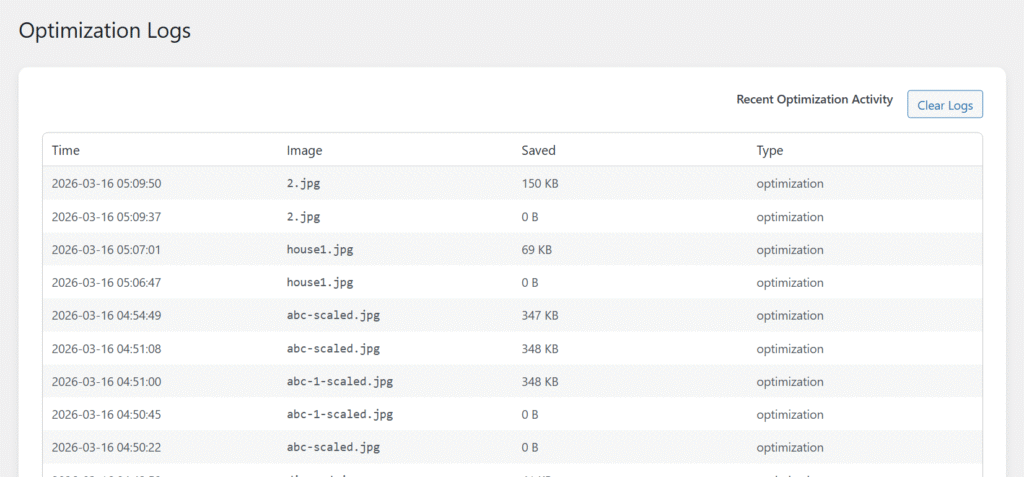
- Optimization logs to track processed images
- One-click bulk optimize button in the dashboard
- Clean and simple admin interface
- Lightweight and performance-optimized
- Improves website speed and SEO performance
2. Requirements & Compatibility 📌
Before installing the plugin, make sure your website meets the following requirements.
Minimum Requirements:
| WordPress 5.8 or higher |
| PHP 7.4 or higher |
| MySQL 5.6 or higher |
| GD Library enabled for image processing |
| Write permission for the WordPress uploads directory |
Recommended Environment:
| WordPress 6.x |
| Imagick or GD extension enabled |
| PHP 8.0+ |
| Server support for AVIF image format |
| HTTPS enabled website for better performance and security |
3. Plugin Installation 🦚
Method — Upload ZIP
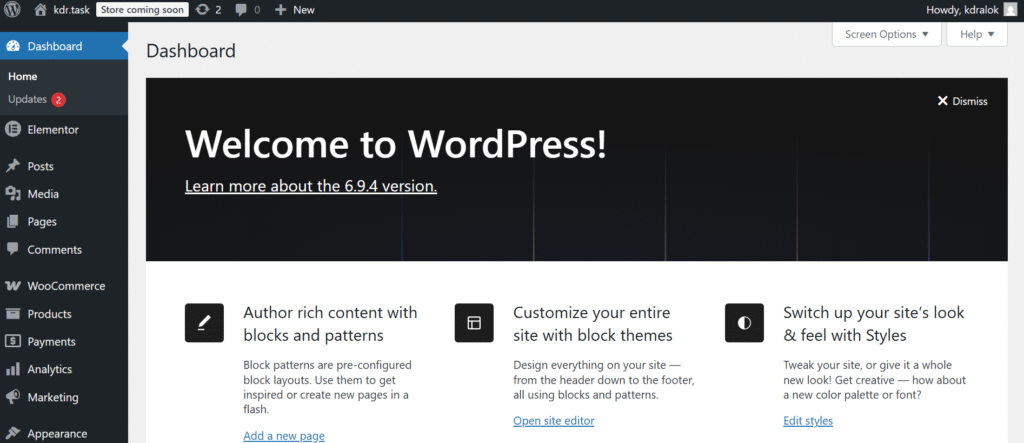
- Go to the WordPress Dashboard –
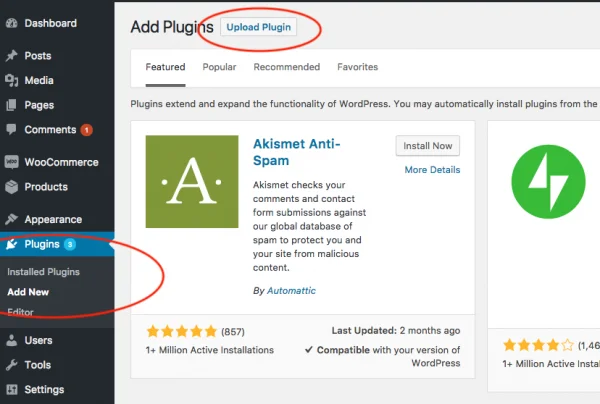
- Plugins → Add New →
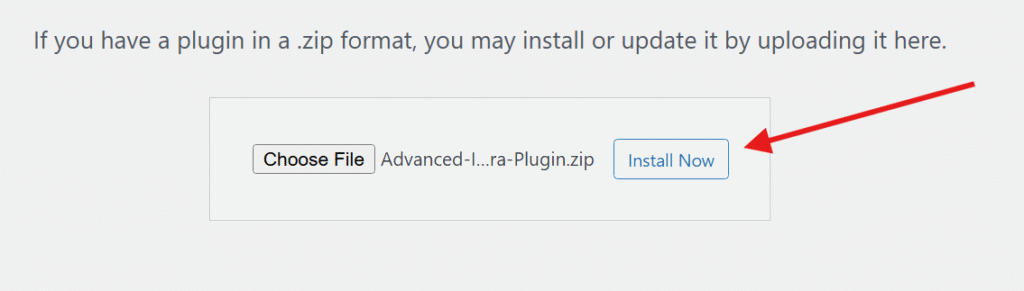
- Upload Plugin > Choose the Advanced-Image-Optimization-Kaddora-Plugin.zip plugin file and click Install Now.
- After successfully Installation & Activation of plugin, you will see ‘Advanced Image Optimization Kaddora Plugin’ in your installed plugin section, here you can check version and description about the plugin.

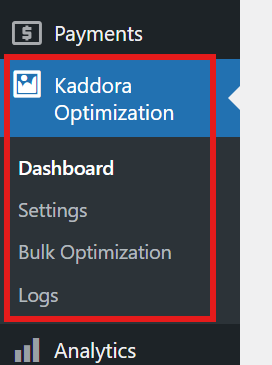
- In the WordPress dashboard, you will find the “Advanced Image Optimization Kaddora” menu option. Click on it to open the plugin dashboard, where you can configure settings and manage image optimization.
4. Settings (Admin Panel) 🛠️
After activation, plugin settings can be accessed from: The settings page contains several configuration sections.
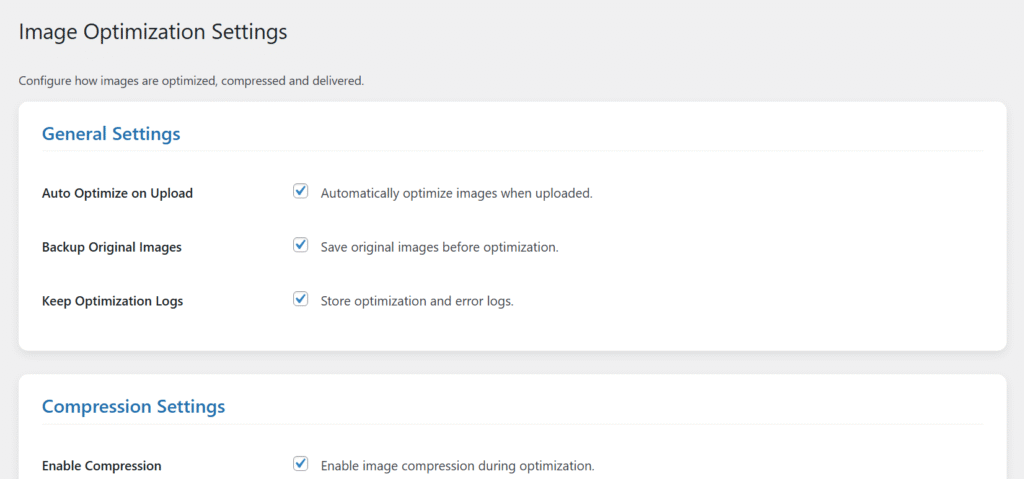
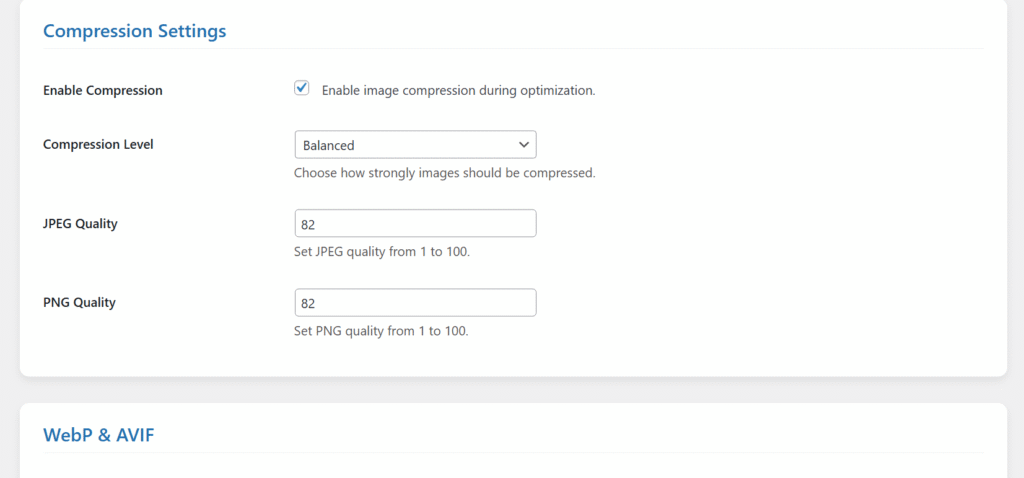
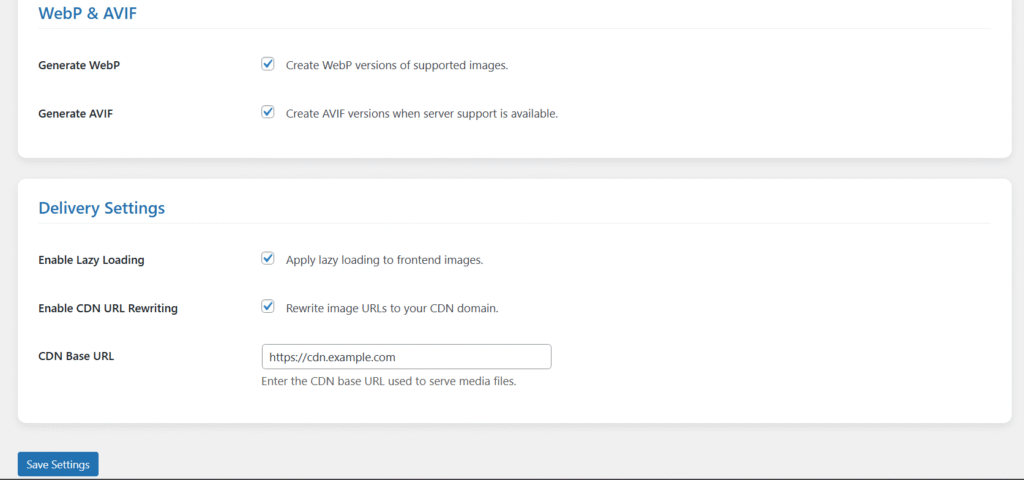
Image Optimization Settings:
Bulk Image Optimization:
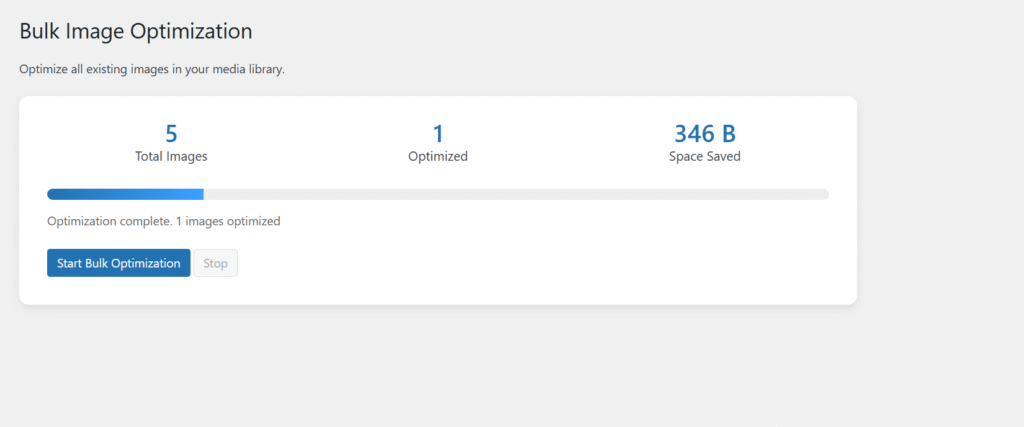
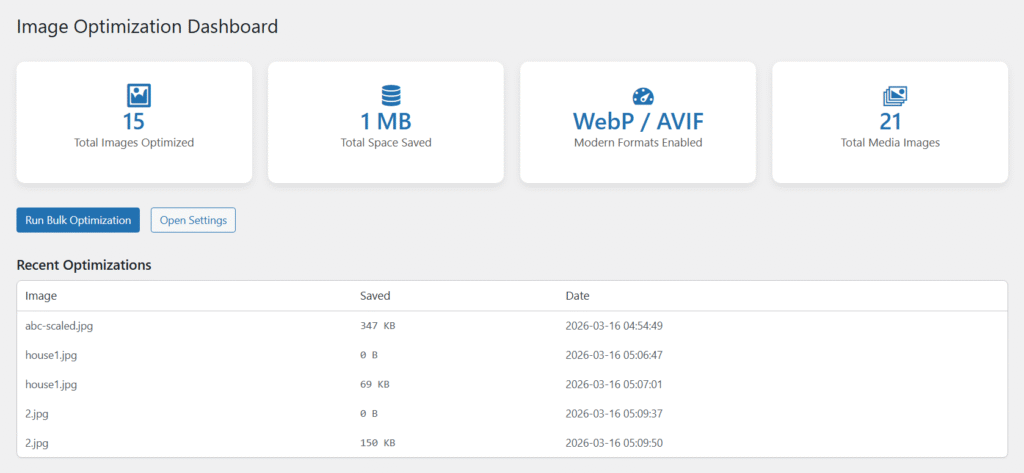
Image Optimization Dashboard:
Optimization Logs:
5. Customization Options 🪼
Website owners can customize how image optimization works according to their needs.
Control Image Compression Level
Adjust the compression level to balance between image quality and file size.
Enable or Disable AVIF Conversion
Turn AVIF image conversion on or off depending on your server support and preference.
Backup Original Images
Enable or disable automatic backup of original images before optimization.
Bulk Optimization Control
Choose to optimize all existing images in the media library with a single click.
Simple Dashboard Controls
Manage optimization settings quickly from a clean and easy-to-use admin interface.
Clear Optimization Logs
Easily clear stored optimization logs from the plugin dashboard when needed.
6. Admin Dashboard Usage 🎯
The plugin provides a simple dashboard inside the WordPress admin panel where users can manage image optimization.
From the dashboard, users can:
- Start bulk image optimization
- View optimization statistics
- Check optimization logs
- Clear logs if needed
All optimization tools are accessible directly from the plugin’s admin interface.
7. Plugin Workflow 🔄
The Advanced Image Optimization Kaddora Plugin follows a simple workflow to optimize images and improve website performance. The process is handled automatically in the background while also allowing manual optimization from the admin dashboard.
Step 1: Image Upload Detection
When a user uploads an image to the WordPress Media Library, the plugin detects the upload event using WordPress hooks.
Step 2: Backup Original Image
Before starting optimization, the plugin creates a backup of the original image. This ensures the original file can be restored if needed.
Step 3: Image Compression
The plugin compresses the uploaded image using the GD or Imagick image processing library, reducing the file size while maintaining visual quality.
Step 4: AVIF Conversion
If enabled in the plugin settings, the image is converted into the AVIF format, which provides better compression and faster loading compared to traditional formats like JPEG and PNG.
Step 5: Save Optimized Image
The optimized image replaces the original file in the uploads directory, while the backup remains stored safely.
Step 6: Update Optimization Logs
After processing, the plugin records details such as:
- image name
- optimization status
- file size reduction
These logs help users monitor optimization activities.
Step 7: Bulk Optimization (Optional)
Users can also optimize all existing images in the Media Library using the Bulk Optimization feature available in the plugin dashboard.
This workflow ensures that all images on the website remain optimized automatically, improving page speed, performance, and SEO.
8. FAQ
Does the plugin slow down my website?
No. The plugin is designed to be lightweight and optimized for performance. Image optimization runs efficiently without affecting website speed.
Does the plugin optimize images automatically?
Yes. The plugin can automatically optimize images when they are uploaded to the WordPress Media Library.
Can I optimize existing images in my media library?
Yes. You can use the Bulk Optimization feature in the plugin dashboard to optimize all previously uploaded images.
Can I restore the original images after optimization?
Yes. The plugin creates a backup of the original images before optimization, allowing restoration if needed.
Does the plugin support AVIF image format?
Yes. The plugin can convert images to AVIF format, which provides better compression and smaller file sizes.
Can I optimize existing images in my media library?
Yes. You can use the Bulk Optimization feature in the plugin dashboard to optimize all previously uploaded images.
Where can I manage the plugin settings?
You can manage all settings from the WordPress Dashboard → Advanced Image Optimization Kaddora menu.
9. Troubleshooting 🔧
Images Not Optimizing-
Possible causes:
- GD or Imagick library not enabled on the server
- File permissions not set correctly for the uploads folder
- Image format not supported for optimization
- Plugin optimization settings disabled
AVIF Images Not Generated-
Some servers do not support AVIF image conversion.
Check the following:
- Your server supports AVIF format
- GD or Imagick extension supports AVIF
- AVIF conversion is enabled in the plugin settings
Bulk Optimization Not Working-
Possible causes:
- JavaScript or AJAX errors in the admin panel
- Server memory limit too low
- WordPress REST/AJAX requests blocked by security plugins
Try the following:
- Refresh the dashboard page
- Check browser console for errors
- Increase server memory_limit
Optimization Logs Not Updating-
If logs are not showing in the dashboard:
- Ensure the plugin has write permission to store log data
- Check if the Clear Logs option was recently used
- Reload the plugin dashboard page to refresh the logs display.
Thanks for Visiting Kaddora Tech 💖