

Smart Asset Optimization plugin 🎀
User Documentation:📜
Smart Asset Optimization Kaddora automatically improves frontend asset loading for WordPress sites. Automatically optimize JavaScript delivery, improve Google Fonts loading, and manage script handles from one admin dashboard.
📑 Table of Contents
1. Introduction 🎗️
Smart Asset Optimization Kaddora automatically improves how frontend assets load on WordPress websites. It optimizes JavaScript delivery, improves Google Fonts loading, and gives you control over script behavior to help boost website performance.
It helps improve:
- Page load speed
- Core Web Vitals performance
- JavaScript execution efficiency
- Google Fonts loading performance
- Overall frontend optimization
The plugin works in several optimization modes:
Delay JavaScript mode — delays non-critical scripts until page load or first user interaction to reduce render blocking.
Google Fonts optimization mode — improves Google Fonts loading using display=swap and optional preconnect hints.
Script management mode — allows you to exclude or disable specific scripts to prevent unnecessary asset loading.
Smart Asset Optimization Kaddora is designed to provide practical performance improvements without complex configuration, giving developers and site owners better control over f
2. Requirements & Compatibility 📌
- Minimum Requirements:
WordPress 5.8 or higher
| WordPress 5.8 or higher |
| PHP 7.4 or higher HTTPS recommended (for clipboard & API features) |
- Tested up to:
WordPress 6.x
PHP 8.x
- Compatible with:
Gutenberg
WooCommerce
Page builders (Elementor, WPBakery, etc.)
Most themes
3. Plugin Installation 🦚
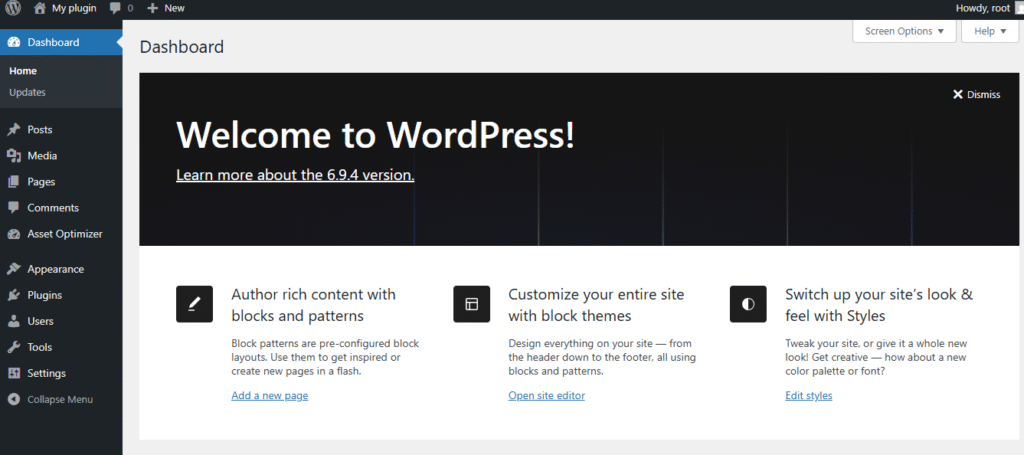
- Go to the WordPress Dashboard -:
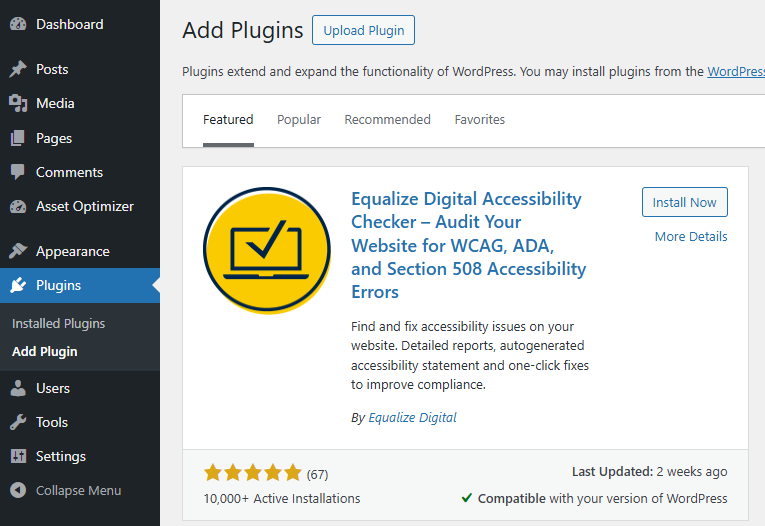
- Plugins → Add New →
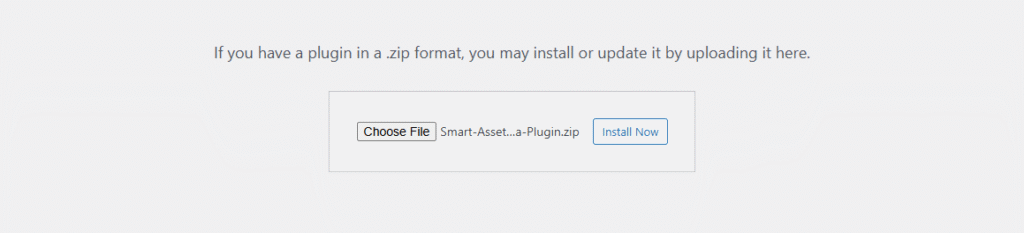
- Upload Plugin > Choose the image-alt-text-auto-generator-kdr.zip plugin file and click Install Now.
- After successfully Installation & Activation of plugin, you will see ‘Smart Asset Optimization plugin’ in your installed plugin section, here you can check version and description about the plugin

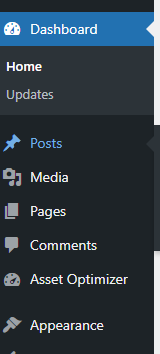
- In WordPress dashboard, you can see ‘Smart Asset Optimization plugin’’ option available, click on it and access the setting part of the Plugin
4. Settings (Admin Panel) 🛠️
- Settings Panel
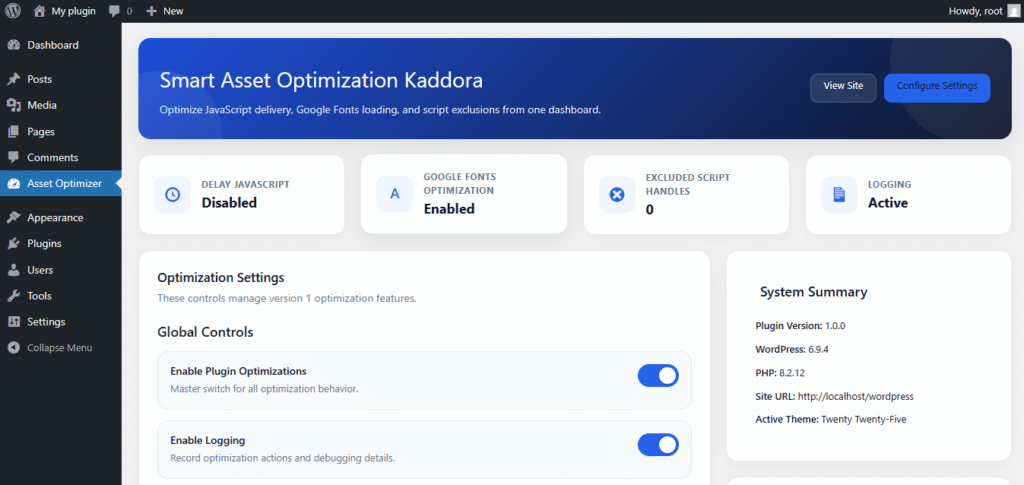
- The Smart Asset Optimization Kaddora Settings Panel allows you to configure how the plugin optimizes JavaScript, Google Fonts, and other frontend assets on your WordPress site.
You can access the settings panel from: - WordPress Dashboard → Asset Optimizer
The settings page is divided into several sections to make configuration easier. - General Settings
These settings control the overall behavior of the plugin.
Enable Plugin
Enable or disable Smart Asset Optimization globally. - Enabled – All optimization features can run.
- Disabled – The plugin will not modify any assets.
Enable Logging
Activates the internal logging system.
Logging helps developers troubleshoot optimization behavior by recording:
scripts being processed
exclusions
errors
optimization actions
Logs can be viewed in the - Diagnostics section.
Log Level
Controls how much information is stored in logs.
Available levels: - Error – Only critical issues are logged.
- Warning – Errors and warnings.
- Info – General plugin activity.
- Debug – Detailed diagnostic information.
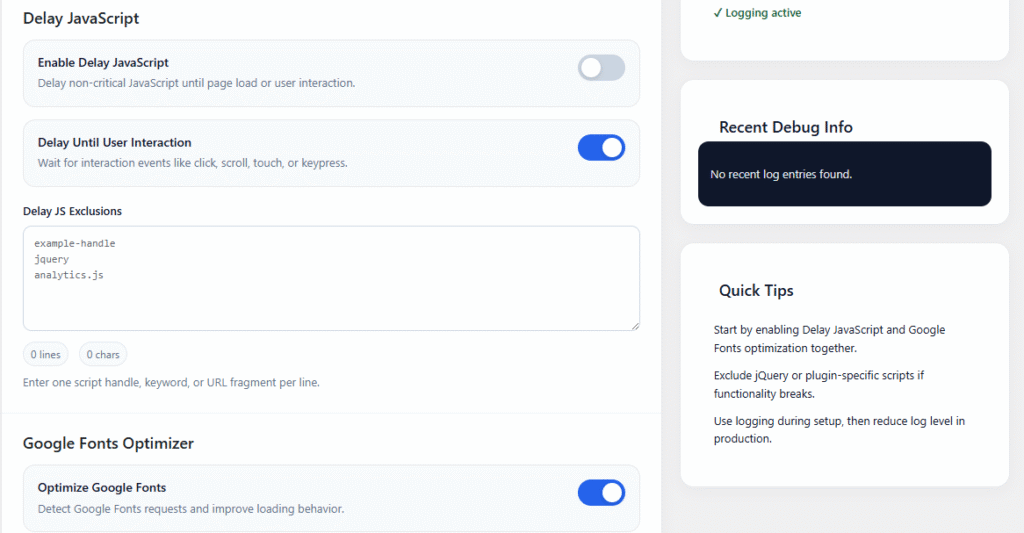
Delay JavaScript Settings :
The Delay JavaScript feature postpones loading of non-critical scripts to improve page performance.
- Enable Delay JavaScript
When enabled, eligible scripts will be delayed to reduce render-blocking behavior. - Delay Until User Interaction
If enabled, scripts are restored only after the first user interaction, such as: - mouse movement
- click
- scroll
- touch event
If disabled, scripts load automatically after page load.
Delay JavaScript Exclusions - Allows you to exclude specific scripts from being delayed.
You can enter:
script handles
keywords
URL fragments - Example:
jquery
gtag
recaptcha
analytics.js
Each exclusion should be placed on a new line.
- Google Fonts Optimization
This section improves the loading behavior of Google Fonts. - Enable Google Fonts Optimization
When enabled, the plugin detects Google Fonts requests and applies performance optimizations.
Force Display Swap - Automatically adds:
display=swap
to Google Fonts requests to prevent invisible text during font loading. - Enable Preconnect
- Adds browser preconnect hints for Google Fonts domains:
fonts.googleapis.com
fonts.gstatic.com
This allows the browser to establish early connections and improve loading speed. - Google Fonts Exclusions
You can exclude specific Google Fonts URLs from optimization if needed.
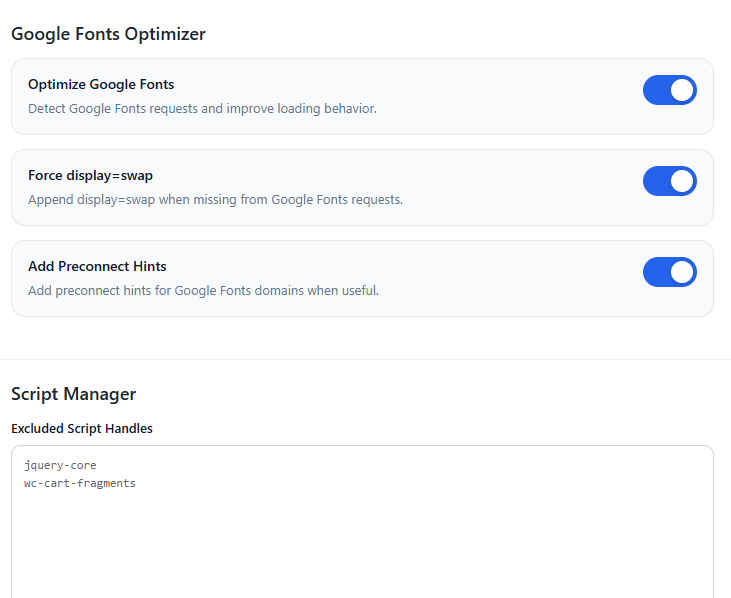
- Script Manager
The Script Manager allows you to control which scripts are excluded or disabled. - Excluded Handles
- Scripts listed here will not be modified by the plugin.
- Use this when a script does not work properly with optimization.
Example:
jquery
elementor-frontend
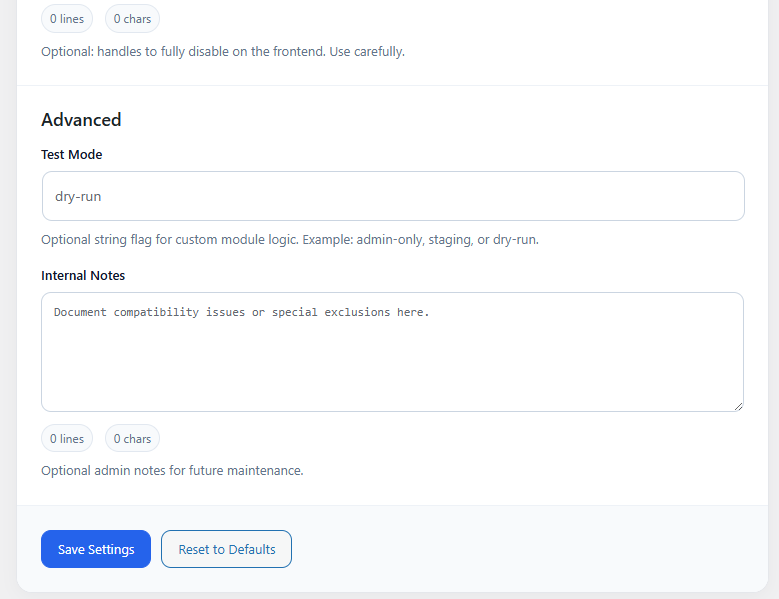
woocommerce - Disabled Script Handles
Scripts listed here will be completely removed from the frontend.
Use this carefully, as disabling required scripts may break functionality.
Example:
contact-form-7
wp-embed
dashicons
5.Smart Asset Optimization (Performance Tool)📲
- Improves WordPress frontend performance by optimizing how scripts and fonts load.
- Helps reduce render-blocking resources and improve overall page load speed.
- Provides tools to delay non-critical JavaScript for better Core Web Vitals scores.
- Optimizes Google Fonts loading to prevent invisible text and improve font rendering.
- Allows administrators to manage and control script loading directly from the dashboard.
- Includes script exclusion options to prevent conflicts with important plugins or themes.
- Enables disabling unnecessary scripts to reduce page weight.
- Provides logging and diagnostics tools to help developers monitor optimization behavior.
- Designed to work safely with most WordPress themes and plugins.
- Simple and lightweight interface for managing performance optimizations.
Key Benefits
- Faster page load times
- Improved Core Web Vitals scores
- Better frontend performance
- More control over JavaScript execution
- Cleaner and more efficient asset loading
6. How It Works (Workflow) 📶
Smart Asset Optimization Kaddora improves frontend performance by analyzing and optimizing how scripts and fonts are loaded on your WordPress site. The workflow follows these steps:
- Plugin Activation
After installing and activating the plugin, Smart Asset Optimization Kaddora loads its optimization modules and default settings. - Asset Detection
When a page loads, the plugin detects registered JavaScript and style assets that are enqueued by WordPress, themes, and plugins. - Settings Evaluation
The plugin checks your configured settings such as:- Delay JavaScript
- Google Fonts optimization
- Script exclusions
- Disabled script handles
- Script Processing
Each script is analyzed to determine whether it should:- Load normally
- Be delayed
- Be excluded from optimization
- Be completely disabled
- JavaScript Delay Optimization
If the Delay JavaScript feature is enabled, eligible scripts are postponed until:- page load, or
- first user interaction (scroll, click, touch, etc.)
- Google Fonts Optimization
Google Fonts URLs are optimized by:- adding
display=swap - enabling browser preconnect for faster font loading
- skipping excluded font requests
- adding
- Script Management Rules
The plugin applies rules defined in the Script Manager:- excluded scripts remain unchanged
- disabled scripts are removed from frontend output
- Frontend Rendering
The optimized asset configuration is applied before the page is sent to the browser, improving loading performance. - Logging and Diagnostics
If logging is enabled, the plugin records actions such as:- delayed scripts
- skipped assets
- optimization decisions
- warnings or errors
- Admin Monitoring
Administrators can review logs, inspect assets, and adjust settings through the plugin dashboard
7. Customization Options 🪼
Here are key customization options for Smart Asset Optimization written in clear points.
- Asset Prioritization Settings
Allows users to define which assets (images, videos, scripts, documents, etc.) should be optimized first based on importance, usage frequency, or business goals. - Format Customization
Enables selection of preferred asset formats such as WebP, JPEG, PNG, or MP4 to balance quality and performance. - Compression Level Control
Users can customize compression levels (low, medium, high) to reduce file size while maintaining acceptable visual or functional quality. - Resolution and Size Adjustment
Provides options to automatically resize assets based on device type, platform requirements, or bandwidth conditions. - Metadata Management
Allows adding, editing, or removing metadata (tags, descriptions, keywords) to improve asset searchability and organization. - Automation Rules
Users can set rules for automatic optimization, such as optimizing assets during upload, scheduled optimization, or optimization based on user behavior. - Platform-Specific Optimization
Assets can be customized for different platforms (web, mobile apps, social media) to ensure optimal performance and compatibility.
8. Shortcodes Guide 🎯
Version 1 does not include shortcodes. All functionality is available via: smart asset optimization Settings Panel, Future versions may include shortcode support.
9. Performance & Caching ↗️
The plugin is optimized for performance:
- Batch processing prevents timeouts
- No frontend scripts loaded
- No database overhead
- No page render impact
Bulk generation uses:
- AJAX batching
- Offset processing
- Safe memory usage
10. Troubleshooting 🔱
Asset Not Loading Properly
Check whether the asset path or URL is correct and ensure the file is properly uploaded to the asset management system.
Poor Asset Quality After Optimization
If the optimized asset appears blurry or distorted, adjust the compression level or select a higher-quality optimization setting.
Slow Asset Delivery
Verify CDN configuration, caching settings, and network connectivity to ensure assets are delivered efficiently.
Unsupported File Format
Ensure the asset format is supported by the optimization system. Convert the file into a compatible format if necessary.
Optimization Process Failing
Check system logs or error messages to identify issues such as server errors, storage limitations, or incorrect configurations.
Incorrect Asset Version Displayed
Clear cache or refresh the asset database to ensure the latest optimized version is displayed.
11. FAQ 🌐
What is Smart Asset Optimization?
Smart Asset Optimization is the process of automatically improving digital assets (such as images, videos, and documents) to enhance performance, reduce file size, and maintain quality.
Why is Smart Asset Optimization important?
It helps improve system performance, faster loading times, better user experience, and efficient storage management.
What types of assets can be optimized?
Common assets include images, videos, audio files, documents, and other digital media used in websites or applications.
Does optimization affect the quality of assets?
Optimization aims to reduce file size while maintaining acceptable quality, though very high compression may slightly reduce quality.
Can Smart Asset Optimization be automated?
Yes, many systems allow automatic optimization during asset upload or through scheduled optimization processes.
What formats are supported in asset optimization?
Supported formats usually include JPEG, PNG, WebP for images, and MP4 or WebM for videos, depending on the platform.
How does Smart Asset Optimization improve website performance?
By reducing asset size and optimizing delivery, it helps websites load faster and reduces bandwidth usage.
Is Smart Asset Optimization useful for mobile devices?
Yes, optimized assets reduce data usage and improve loading speed on mobile networks.
Can optimized assets be restored to the original version?
Many systems keep the original file so users can revert if needed.
Does Smart Asset Optimization require technical knowledge?
Basic systems are user-friendly, but advanced customization may require some technical understanding.
12. Support & Updates 🚒
- Contact developer
- Plugin page support
- GitHub issues (if public)
Updates may include:
- asset optimization
- Multilingual support
- Rules engine
- Auto caption/title sync
Thank you for connecting Kaddora Tech ❤️