

WooCommerce Inventory Management kaddora 🎀
User Documentation:📜
WooCommerce Inventory Management Kaddora is a WordPress plugin designed to help store owners efficiently monitor and manage product inventory in WooCommerce. It provides a simple and organized interface that allows administrators to track stock levels, identify low-stock products, and manage inventory more effectively.
📑 Table of Contents
1. Introduction 🎗️
WooCommerce Inventory Management Kaddora plugin helps store managers stay informed about product availability and take timely action before items go out of stock. By providing clear insights into inventory levels, it improves overall store management and operational efficiency.
It helps improve:
- Product stock monitoring
- Inventory visibility in the admin dashboard
- Early detection of low-stock products
- Store management efficiency
- WooCommerce inventory organization
The plugin works with WooCommerce products and provides useful inventory features such as:
- Low Stock Detection — Automatically identifies products with stock below the defined threshold
- Inventory Dashboard — Displays product stock information in an organized admin interface
- Stock Threshold Settings — Allows administrators to define the minimum stock level for alerts
2. Requirements & Compatibility 📌
- Minimum requirements:
| WordPress 5.8 or higher |
| PHP 7.4 or higher |
| HTTPS recommended (for clipboard & API features) |
- Tested up to:
| WordPress 6.x |
| PHP 8.x |
| WordPress 6.x |
- Compatible with:
| WooCommerce |
| Classic Editor |
| Gutenberg Editor |
| Page builders (Elementor, WPBakery, etc.) |
| Most themes |
3. Plugin Installation 🦚
Method — Upload ZIP
- Go to the WordPress Dashboard –
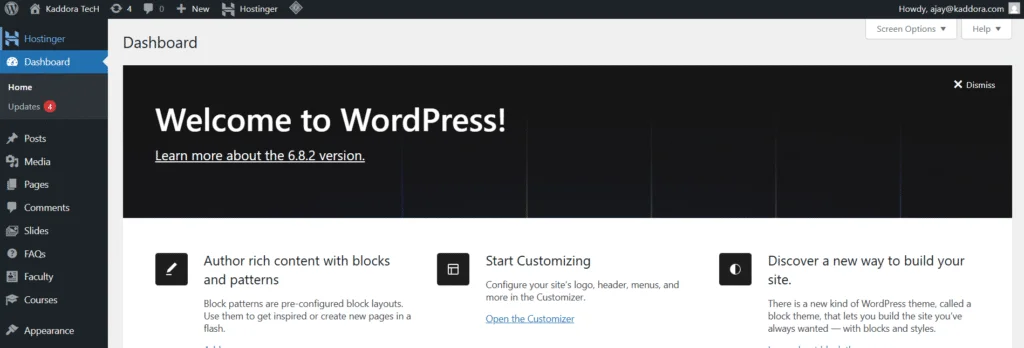
- Plugins → Add New →
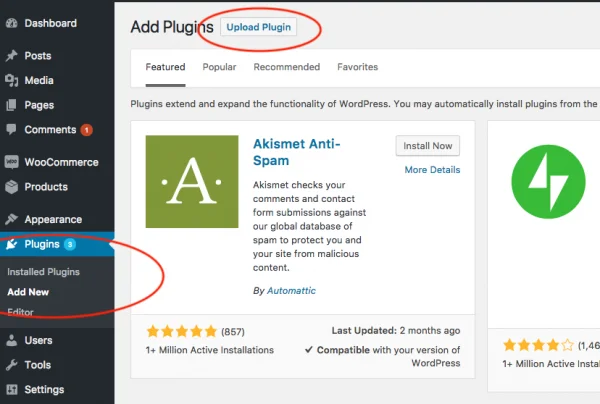
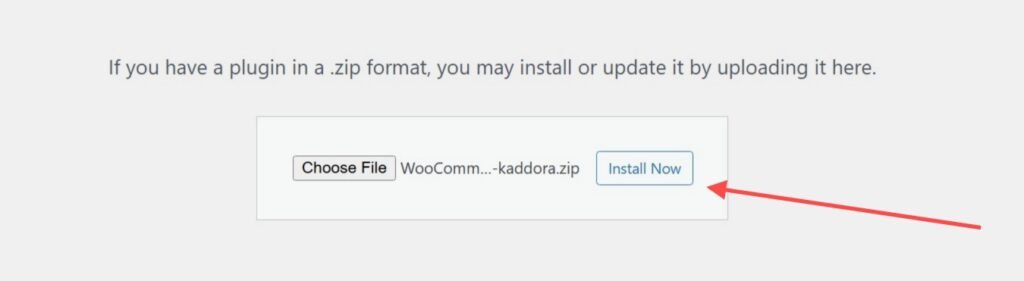
- Upload Plugin > Choose the WooCommerce-Inventory-Management-kaddora.zip plugin file and click Install Now.
- After successfully Installation & Activation of plugin, you will see ‘WooCommerce Inventory Management Kaddora’ in your installed plugin section, here you can check version and description about the plugin

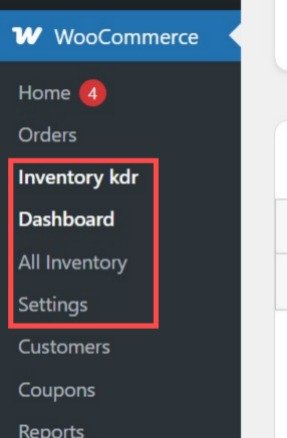
- In WordPress dashboard, you can see ‘Inventory Kaddora Settings’ option available, click on it and access the setting part of the Plugin-
4. Settings (Admin Panel) 🛠️
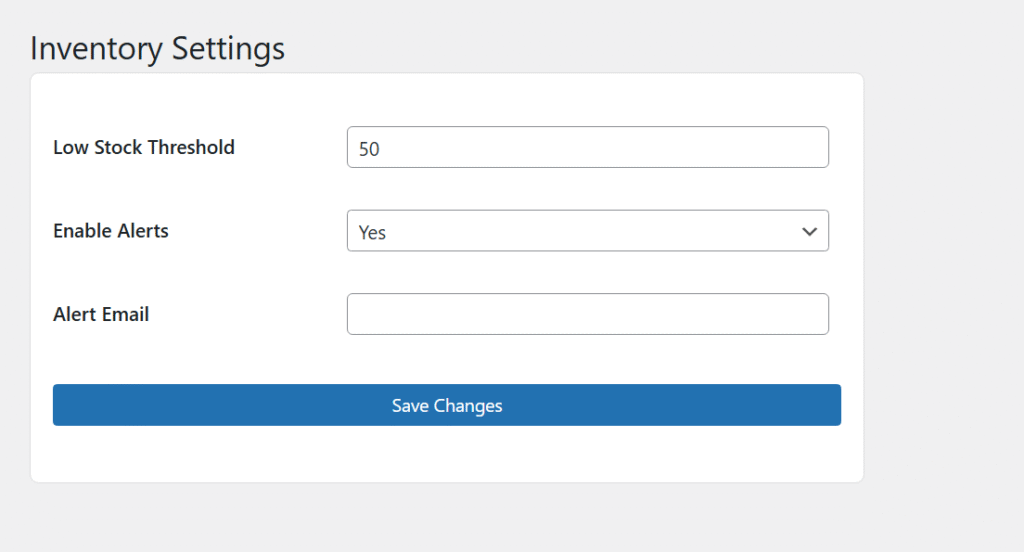
Navigate to: WooCommerce Inventory Management Kaddora Settings Page
Available Settings
- Low Stock Threshold – Defines the minimum stock quantity for a product.
When the product stock falls below this value, the plugin identifies it as a low-stock product.
Example:
If threshold = 5, any product with stock 5 or less will be marked as low stock.
- Enable Alerts – Allows administrators to enable or disable low stock alerts.
Options:
Yes – Low stock alerts will be enabled and products below the threshold will be highlighted in the inventory dashboard.
No – Low stock alerts will be disabled.
Inventory Dashboard
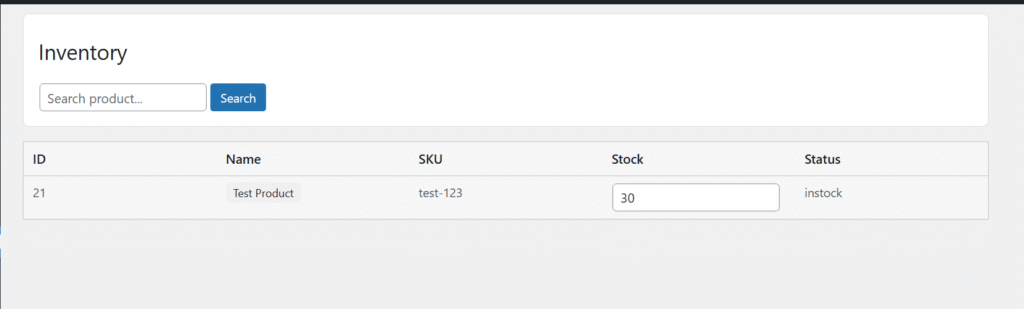
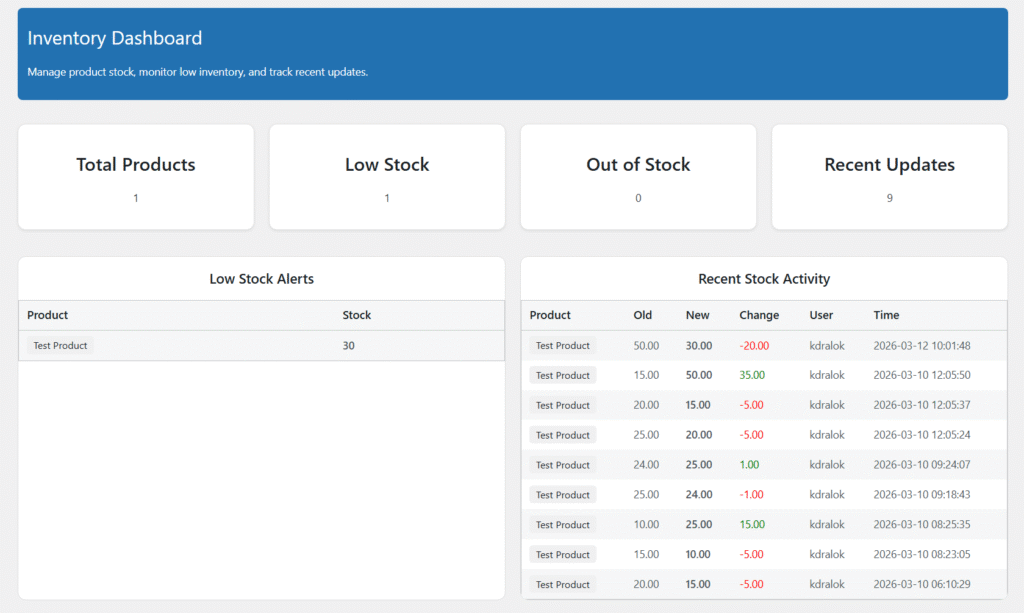
The plugin provides a dashboard where administrators can:
- View products with low stock
- Monitor product inventory levels
- Quickly identify products that need restocking
5. Customization Options 🪼
You can customize behavior via Settings:
- Case style
- Prefix removal
- Numeric skipping
- Batch speed
- Auto mode
- Overwrite behavior
6. Performance & Caching ↗️
The plugin is optimized for performance:
- Batch processing prevents timeouts
- No frontend scripts loaded
- No database overhead
- No page render impact
Bulk generation uses:
- AJAX batching
- Offset processing
- Safe memory usage
7. Troubleshooting 🔱
Low stock products not showing, Check:
- Make sure WooCommerce is installed and activated.
- Verify that products have stock management enabled.
- Check that the Low Stock Threshold value is set correctly in plugin settings.
Inventory dashboard not displaying products, Possible causes:
- No products have stock below the defined threshold.
- Stock management is disabled for the product.
- WooCommerce product stock quantity is not set.
Settings not saving, Check:
- Ensure you are logged in as an Administrator.
- Make sure no security or caching plugin is blocking admin requests.
- Try refreshing the page and saving the settings again.
8. FAQ 🌐
Q. Does this plugin modify product stock automatically?
A. No — the plugin only monitors and displays stock levels. It does not change product stock quantities.
Q. How does the plugin detect low-stock products?
A. It checks the product stock quantity and compares it with the Low Stock Threshold set in the plugin settings.
Q. Does it work with all WooCommerce products?
A. Yes — it works with all WooCommerce products that have stock management enabled.
Q. Will this plugin slow down my website?
A. No — the plugin runs mainly in the WordPress admin dashboard and has minimal performance impact.
Q. Can I change the low stock limit?
A. Yes — administrators can set a custom Low Stock Threshold value from the plugin settings page.
9. Support & Updates 🚒
- Contact developer
- Plugin page support
- GitHub issues (if public)
Updates may include:
- Email notifications for low-stock products
- Advanced inventory reports and analytics
- Automatic stock alerts for administrators
- Improved dashboard UI and product filters
- Compatibility updates for future WooCommerce versions
Thank you for connecting Kaddora Tech ❤️